
Setting up your Shoutcast board shouldn’t be a struggle. Follow this step-by-step guide to get your music stream, DJ information, and display settings configured correctly.
1. Initial Rez and Placement
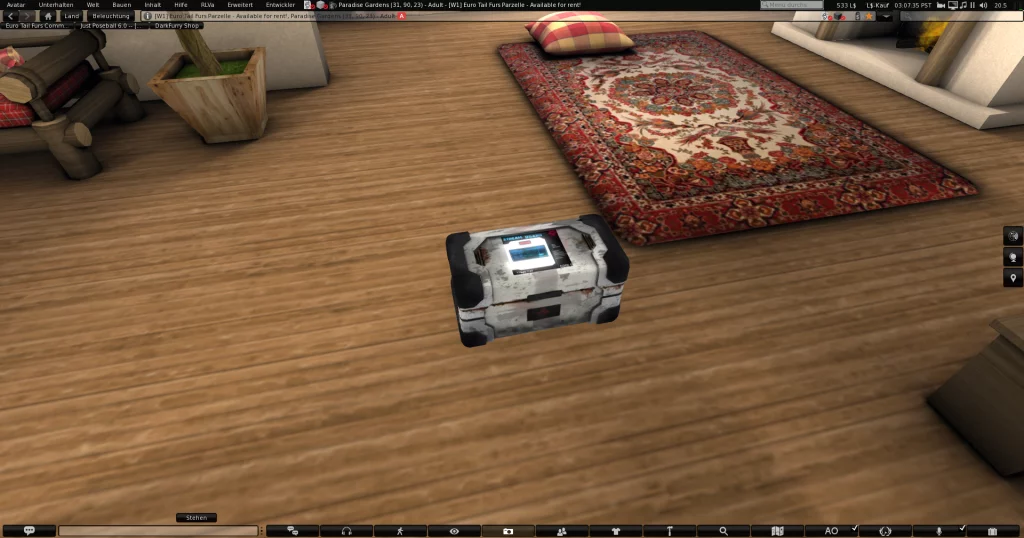
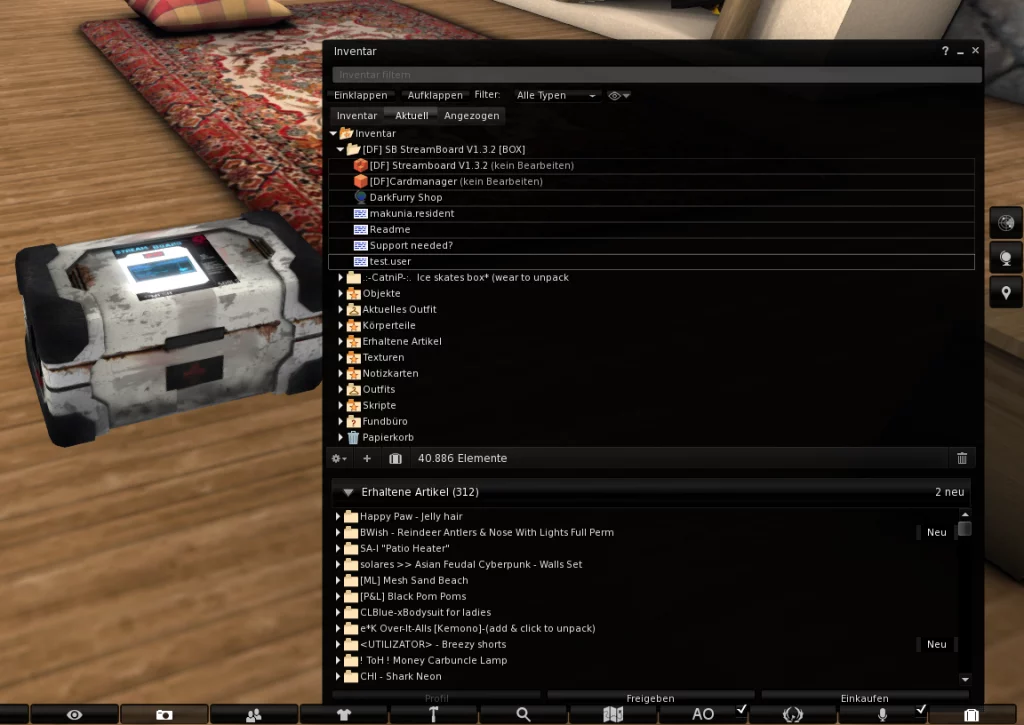
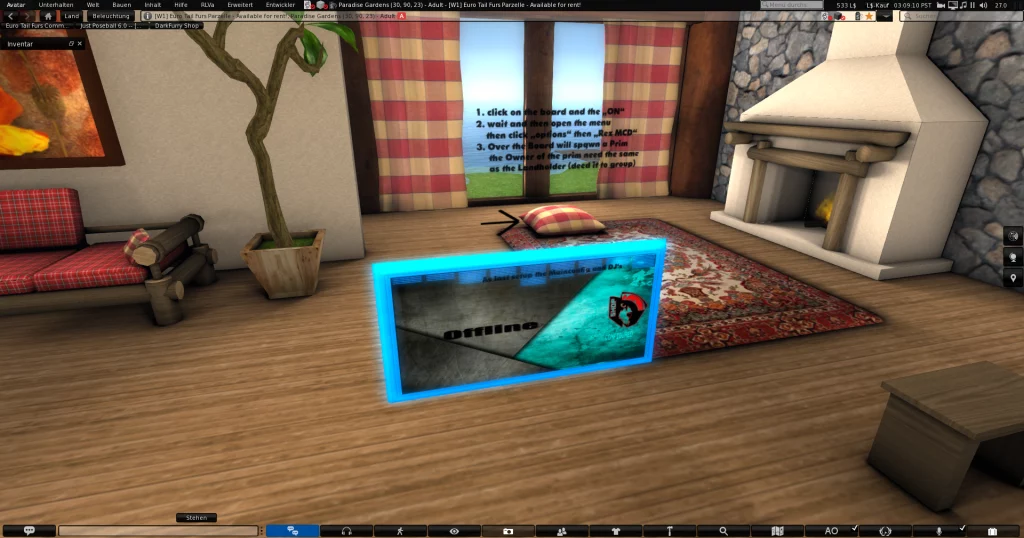
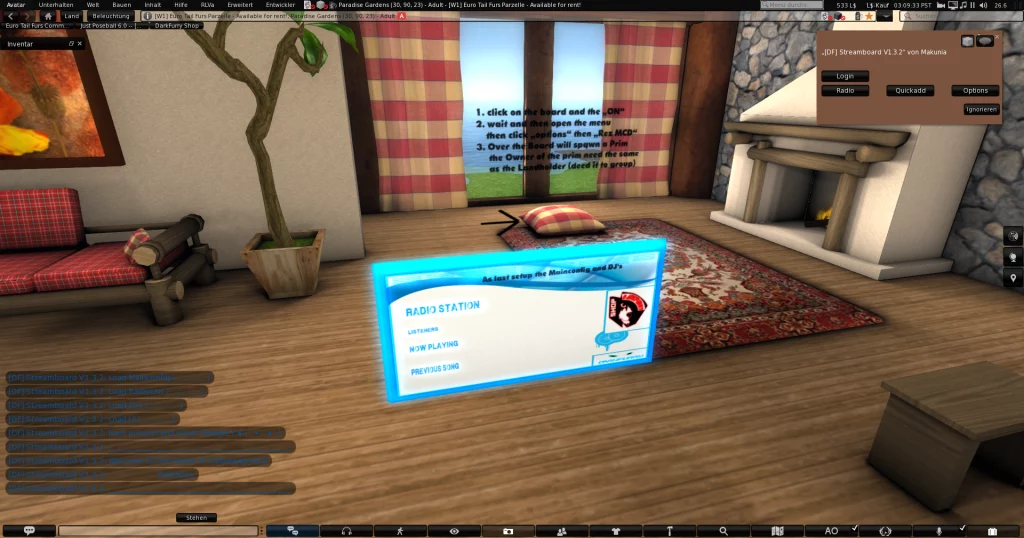
- Rez the Board: Drag the board from your inventory onto the ground at your club or venue.
- Group Permissions: If your land is group-owned, ensure the board is deeded to the correct group to allow for proper land permissions.
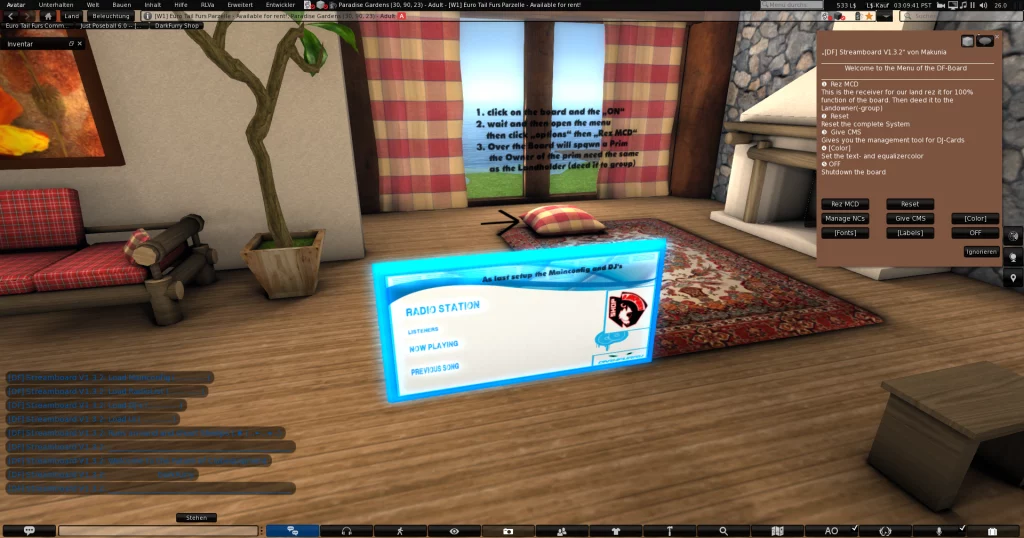
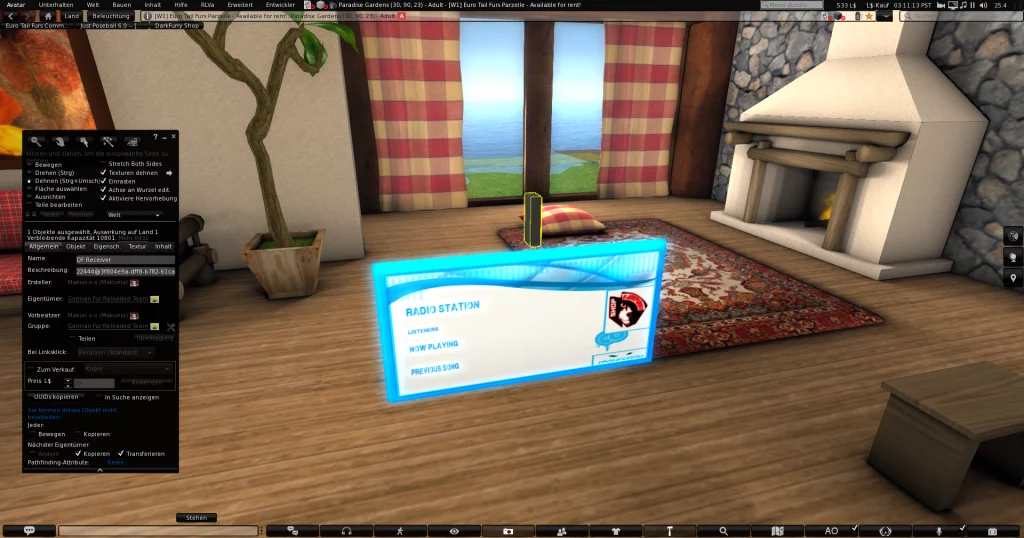
- The Receiver Unit(MCD): Some models include a separate receiver unit. Ensure it is also rezzed within a reasonable range of the main board to maintain signal connectivity.
2. Configuration via Notecards
Most modern boards use a configuration notecard for management.
- Locate the Notecard: Right-click the board > Edit > Content tab.
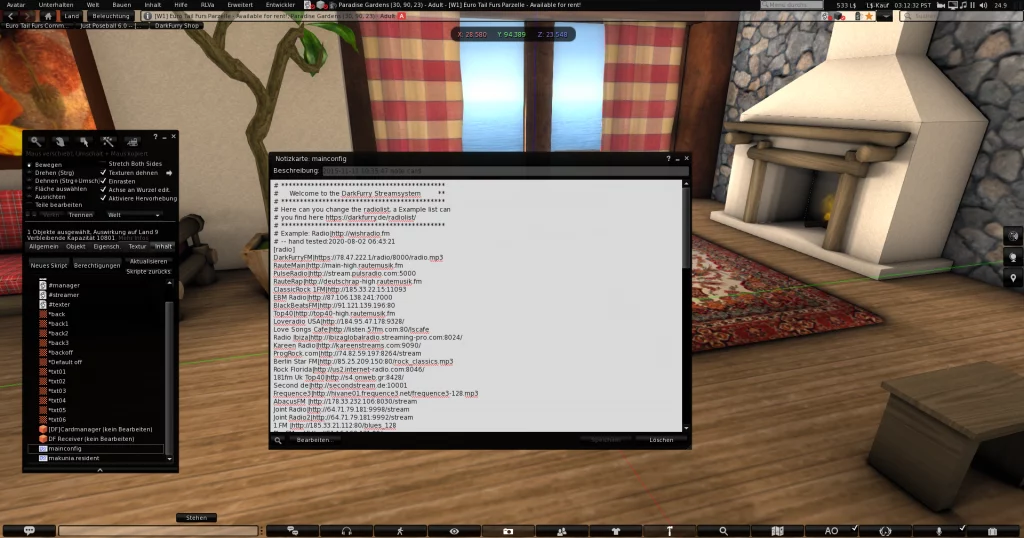
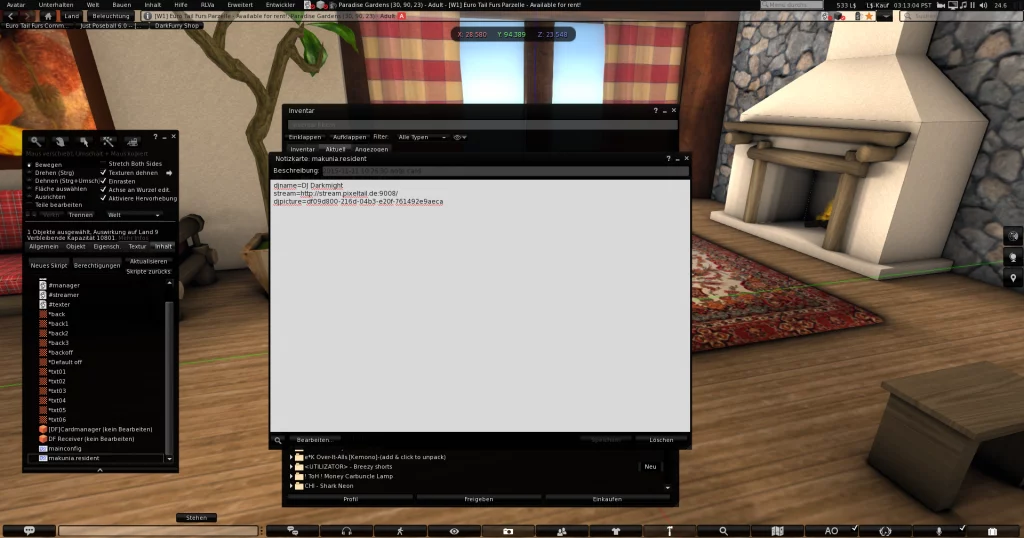
- Edit the Settings: Open the main configuration notecard and update the following:
- Stream URL: Paste your Shoutcast or Icecast stream link here.
- Staff Access: Add the names of your DJs/Managers to the designated list.
- Display Customization: Adjust colors, fonts, and scroll speeds to match your club’s brand.
- Add all DJ-Notecards: Be aware all Notecards needs the name as the DJ as example: Firstname.Resident, open the NC and change the settings also!
- Finalize: Save the notecard. The board will automatically reset and apply your new settings.
3. Connecting Your Stream
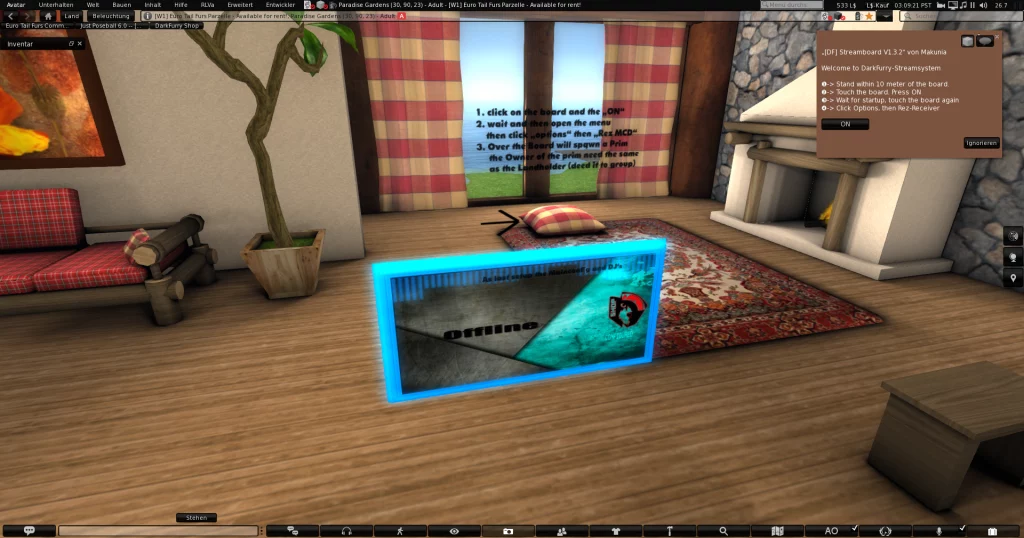
- Menu Access: Click the board to open the administrative menu.
- DJ Login: Click the “Login” button. The board will attempt to pull metadata (Song Title, Artist, Bitrate) from your stream URL.
4. Troubleshooting Common Issues
If you encounter connectivity problems, check these items first:
- “Invalid Stream” Error: Double-check your stream URL in the notecard. Ensure it is a direct link to the stream (e.g.,
http://your-server-ip:port/stream). - Display Not Updating: Ensure the board has sufficient permissions to access land media. If you are in a rented space, verify that your landlord has enabled stream-changing permissions.
- Scripts Not Responding: If the board becomes laggy, reset the scripts (Edit > Content > Reset Scripts) or re-rez the unit.
Pro Tips for Success
- Custom Branding: Use the designated texture slots to upload your club’s logo or your DJ’s profile photo for a premium look.
- Keep Firmware Updated: Always check the creator’s latest updates to ensure full compatibility with the latest Shoutcast v2 servers.
Need more help? Feel free to contact our support team in-world